


e-Forms installation for Hilton brand hotels OnQ Users
Install the e-Forms fonts.
It may
be easier to use a printout to complete this part of the installation. When
you have finished continue with the next step:
Configure OnQ to use the new printer.
-
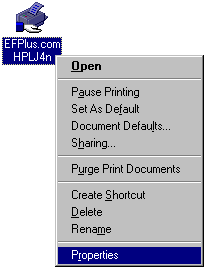
Click on Start / Settings / Printers (in Windows XP
click on Start / Printers and Faxes ) and then use the right
mouse button to click on the print that has "LJ4n" in its name (this
may be EFPLus.com HPLJ4n or Hilton HP LJ4n) and select
the Properties item from the popup menu. You can also click once on
the printer icon and then select File / Properties from the
menu or double click on the printer icon and then select Printer /
Properties from the document que menu.
-
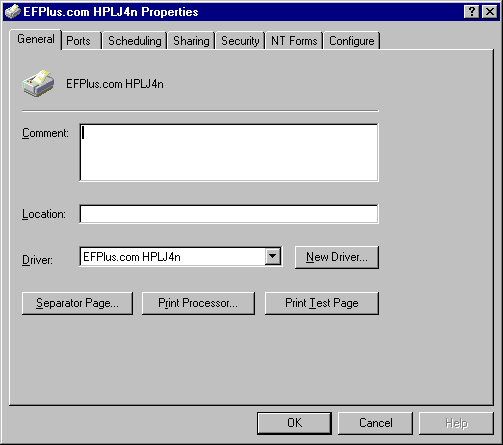
Click on the Configure tab on the far right. If the Configure tab
is displayed, but you can't click on it, you will need to click on
Cancel then Start / Shutdown / Close all
programs... and then log on as a supervisor and start over.
If the far right tab is "Device Settings" rather than "Configure" then you have the Microsoft version of the HP Laserjet 4 driver installed, which does NOT support e-Forms. You can try the other printer drivers in the list but you will probably need to go back and Install an updated e-Forms capable printer driver.
-
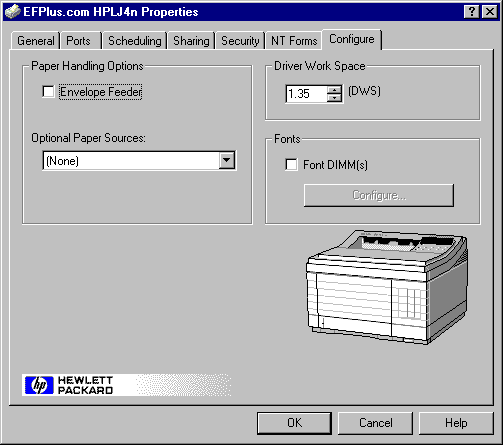
In the Configure tab, look in the Fonts area at the Font
DIMM(s) checkbox.
- If it is not already checked, click on the box to the left of the words "Font DIMM(s)."
-
If it is already checked, click on the Configure... button.
-
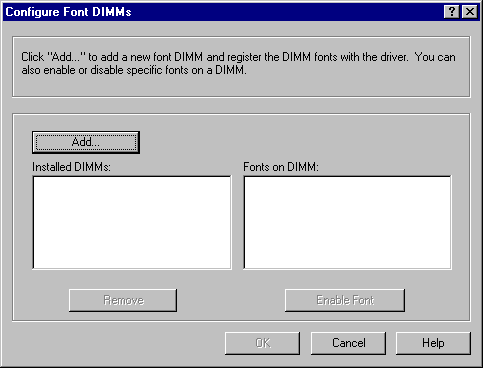
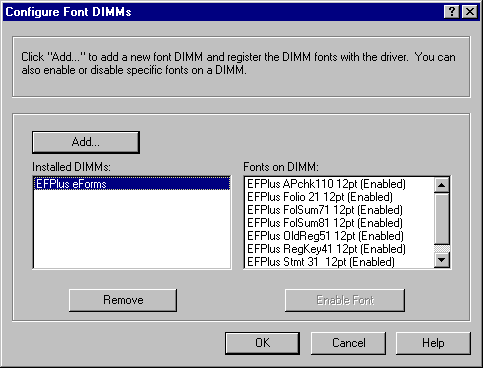
In the Configure Font DIMMs dialog, look at the Installed DIMMs:
area.
If you see EFPlus eForms, click on it and verify that a list of form names appears in the Fonts on DIMM: area with the word (Enabled) to the right of each form.
-
Secifically, look for EFPlus Folio21 12pt and EFPlus RegKey41
12pt. If you are useing the NEW reg keypacket layout with the room number
upside down on the inside flap, make sure that EFPlus UpsideDN 12pt
is also present. If this all looks good, proceed to the next step:
"Configure OnQ to use the new printer".
- If the fonts are not enabled, if some are missing or appear damaged, click the Remove button to clear out the Installed DIMMs list then click on Ok to close the dialog and click on Configure button again to re-open it.
If you do not see EFPlus eForms in the Installed DIMMs area, click on the Add... button.
-
Secifically, look for EFPlus Folio21 12pt and EFPlus RegKey41
12pt. If you are useing the NEW reg keypacket layout with the room number
upside down on the inside flap, make sure that EFPlus UpsideDN 12pt
is also present. If this all looks good, proceed to the next step:
"Configure OnQ to use the new printer".
-
In the Add Font DIMM dialog...
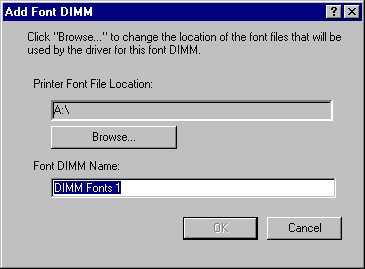
...click on the Browse... button. The font files are available on the X drive at X:\drivers\efpforms\efps21d.pcm
Pull down the Look in list and change it to the X: drive (this should show up as "Install on XXXXServer (X:)" where the XXXX is your hotel code).
Double click on the Drivers folder and then on the efpforms folder. Highlight the efps21d.pcm file by clicking on it and press Open. -
You should see EFPlus eForms in the Installed DIMMs: area,
click on it and verify that a list of form names appears in the Fonts
on DIMM: area with the word (Enabled) to the right of each form.
Note: If the computer freezes at this point, with an hour glass or shows an error message, the fonts previously installed in the computer may be damaged. In that case, all the EFPlus fonts must be removed from the printer properties and the control panel fonts list. Typically, this requires a restart of the workstation, without starting the property management software. Then go into Start / Control Panel / Fonts (or Appearance and Themes / fonts; on the left side) and scroll down to the EFPlus fonts and delete each one. Be careful not to delete any fonts that do not start with "EFPlus..." Once the fonts are cleared out, try to install them again following the procedure on this page.
- Click on Ok and then close the Printer Properties dialog by clicking on Ok again.
Next: Configure OnQ to use the new printer. Last step!
Contact Us | Privacy Policy | Return Policy